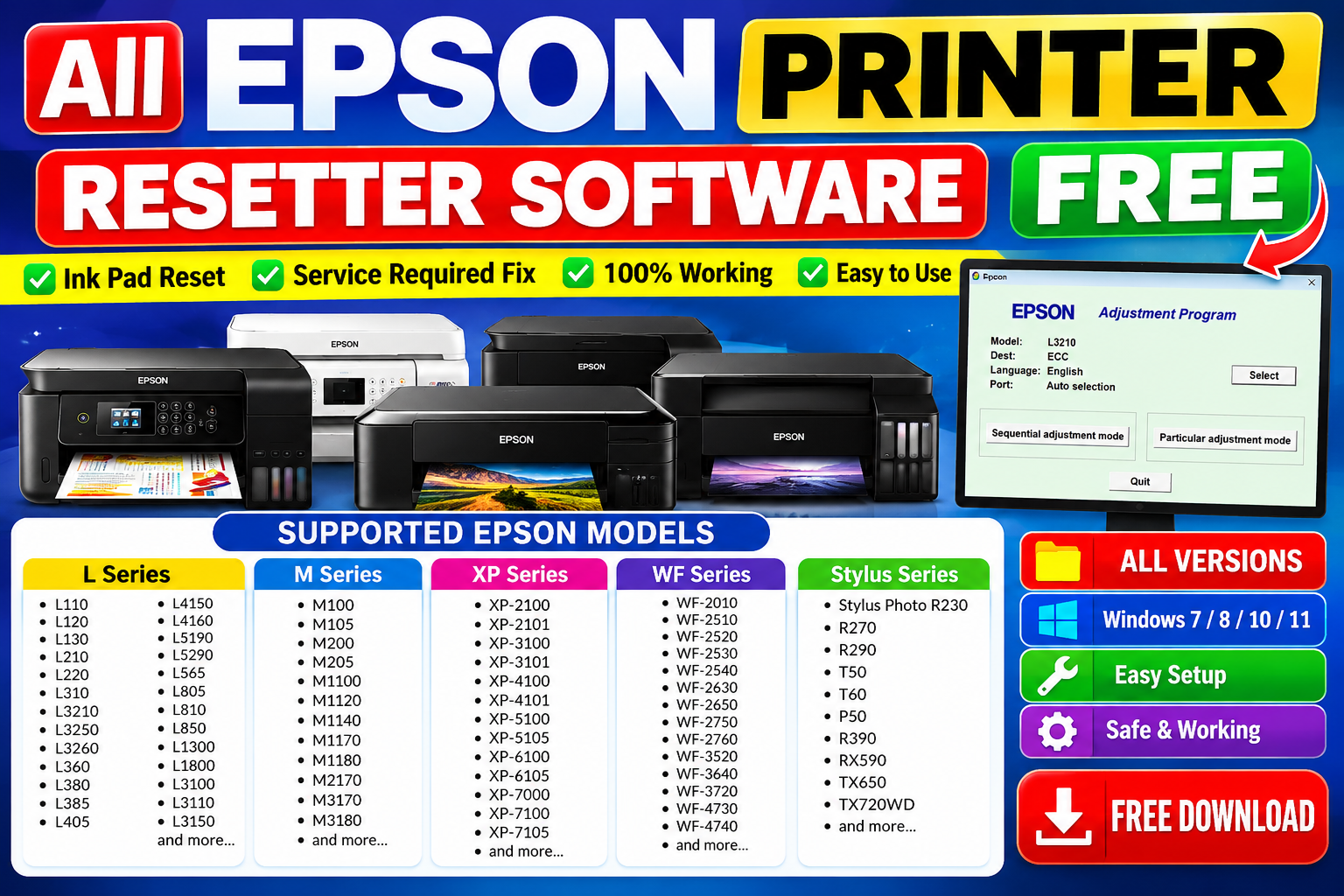
Epson Printer Resetter: How to Fix Waste Ink Pad Counter Error
Are you facing an error on your Epson printer, such as blinking lights, a “Service Required” message, or a “The printer’s ink pad is at the end of its service life” warning? These problems can occur on some Epson inkjet printers when the waste ink counter reaches its limit.
In this guide, you will learn what an Epson printer reset utility does, why the waste ink pad counter error occurs, and how to troubleshoot the issue safely.
What Is an Epson Printer Resetter?
An Epson printer reset utility is a software tool designed to reset certain printer maintenance counters on supported Epson models. Depending on the model and utility, it may help clear a waste ink counter warning after the underlying maintenance issue has been addressed.
Important: Resetting the counter does not physically clean or replace the waste ink pads. If the pads are saturated, ink may leak into the printer and cause damage.
Common Epson Printer Problems
Users may experience the following issues:
Printer lights blinking continuously.
“Service Required” or “Maintenance Required” messages.
Waste ink pad counter warnings.
Printer refusing to print after reaching a maintenance limit.
Printer-related error messages after extended use.
Not every blinking-light problem is caused by the waste ink counter. Paper jams, ink delivery problems, and other hardware faults can produce similar symptoms.
How to Troubleshoot an Epson Waste Ink Pad Error
Follow these steps before attempting a counter reset.
Step 1: Check the Printer Model
Find your exact Epson printer model on the front panel, rear label, or product documentation. Different models require different maintenance procedures.
Step 2: Check the Error Message
Open the Epson printer status monitor or check the message displayed on your computer. Confirm whether the error specifically refers to the waste ink pad or maintenance counter.
Step 3: Inspect for Paper Jams
Turn off the printer and check for jammed paper or visible obstructions. Follow the manufacturer's instructions and avoid forcing internal parts.
Step 4: Check Waste Ink Pad Maintenance
If the printer reports that the waste ink pad has reached the end of its service life, arrange inspection, cleaning, or replacement through an authorized Epson service provider.
Step 5: Use Compatible Maintenance Software
Use only a legitimate maintenance utility that explicitly supports your printer model. Check the software source, compatibility, and instructions before running it.
Some Epson models require a service procedure or authorized utility rather than a general-purpose reset program.
Step 6: Test the Printer
After the maintenance issue has been addressed, follow the applicable reset procedure and print a test page. If the warning remains, contact an Epson service professional.
Epson Printer Models
Maintenance procedures vary by model. Common Epson EcoTank and inkjet model families include:
Epson L3110
Epson L3210
Epson L3250
Epson L3150
Epson L130
Epson L805
This list does not guarantee that one reset utility works with every model. Always verify exact model compatibility before downloading or using software.
Is It Safe to Use a Free Epson Resetter?
Be cautious when downloading free reset utilities from unknown websites. Some downloads may contain unwanted programs, malware, or software that does not support your printer.
Before downloading:
Verify the publisher and source.
Scan the file with reputable security software.
Avoid disabling antivirus protection to run an unknown program.
Read the compatibility instructions.
Do not reset a waste ink counter without addressing the physical maintenance issue.
Frequently Asked Questions (FAQs)
1. Why are my Epson printer lights blinking?
Blinking lights can indicate several problems, including paper jams, ink-related errors, or maintenance requirements. Check the exact error message for a more accurate diagnosis.
2. Does resetting the waste ink counter clean the ink pads?
No. A software reset changes the counter; it does not remove waste ink or clean the physical pads.
3. Can one resetter work with all Epson printers?
No. Compatibility depends on the printer model, firmware, operating system, and utility.
4. Where should I get Epson maintenance software?
Start with the official Epson support website or an authorized service provider. Avoid unverified downloads.
Conclusion
An Epson printer reset utility may help resolve a supported waste ink counter warning, but it is important to identify the actual problem first. Check your printer model, review the error message, and ensure that waste ink pad maintenance is completed before resetting the counter.
For the safest results, use official Epson support resources or a qualified printer technician.
Disclaimer: This article is for educational and troubleshooting purposes only. Epson is a trademark of Seiko Epson Corporation. This article is not an official Epson publication, and no affiliation or endorsement is implied.